 Desktop Note
 vs ColorNote: How to Keep Using Colorful Notes After Moving to iPhone
Moving from Android to iPhone? Compare Desktop Note and ColorNote for colorful notes, Home Screen widgets, iCloud and importing existing backups.
After switching from Android to iPhone, many ColorNote users look for an app that lets them keep their familiar colorful notes while also bringing their existing notes along.
There is one important starting point: ColorNote currently states that its app supports Android only, with no official iPhone version. This comparison is therefore mainly for people preparing to move to iPhone. Which familiar habits can you carry into Desktop Note, and where does the experience differ from ColorNote?
What they share: text notes, checklists, colors and Home Screen access
Both apps let you write text notes, create to-do lists and distinguish content using colors. Both also offer ways to display notes on the Home Screen, on different platforms: ColorNote on Android, and Desktop Note on iPhone and iPad. Both have synchronization capabilities, although they use different services to provide them.
If you like ColorNote because you can quickly write a note and put it somewhere you will see it often, you can establish that same everyday habit in Desktop Note.
Desktop Note: note and photo widgets for iPhone
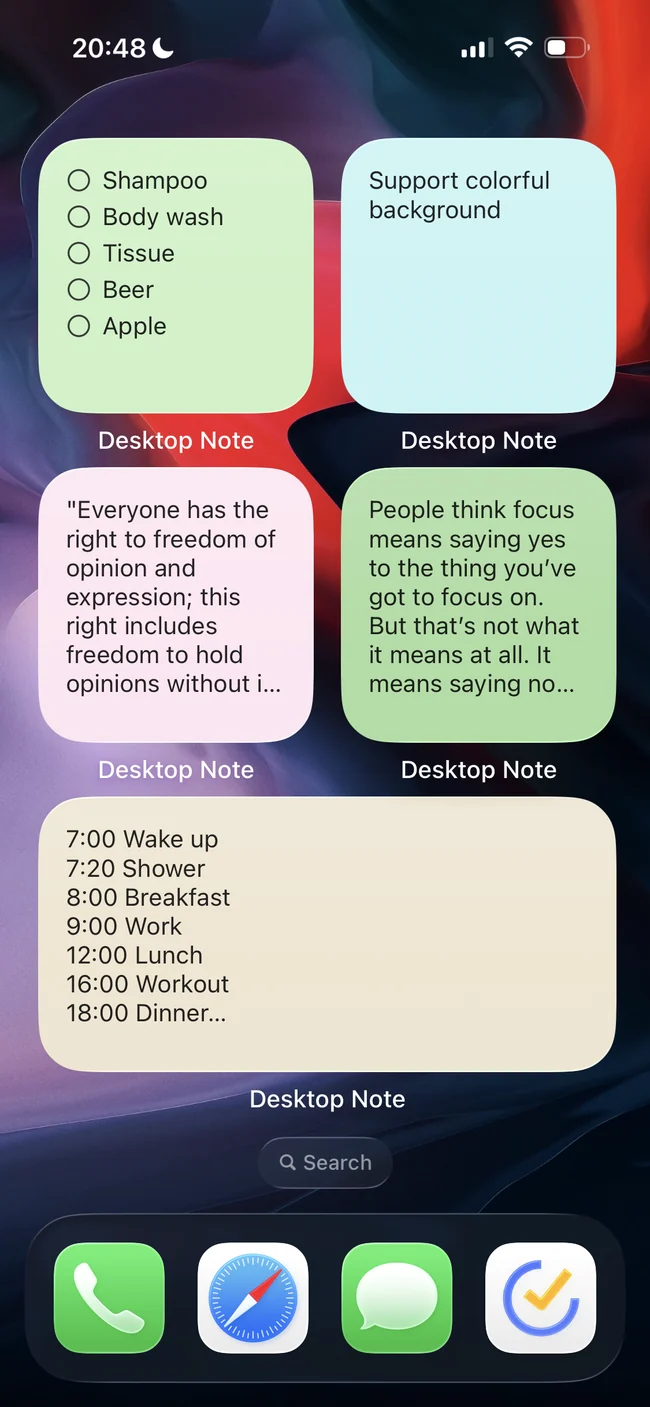
One of Desktop Note’s advantages is its selection of note and photo widgets for iPhone. You can put content you need to check repeatedly on your Home Screen, or use a photo widget there. This gives the notes you return to a place alongside the apps you use throughout the day.

Colors, illustrated backgrounds and text styles
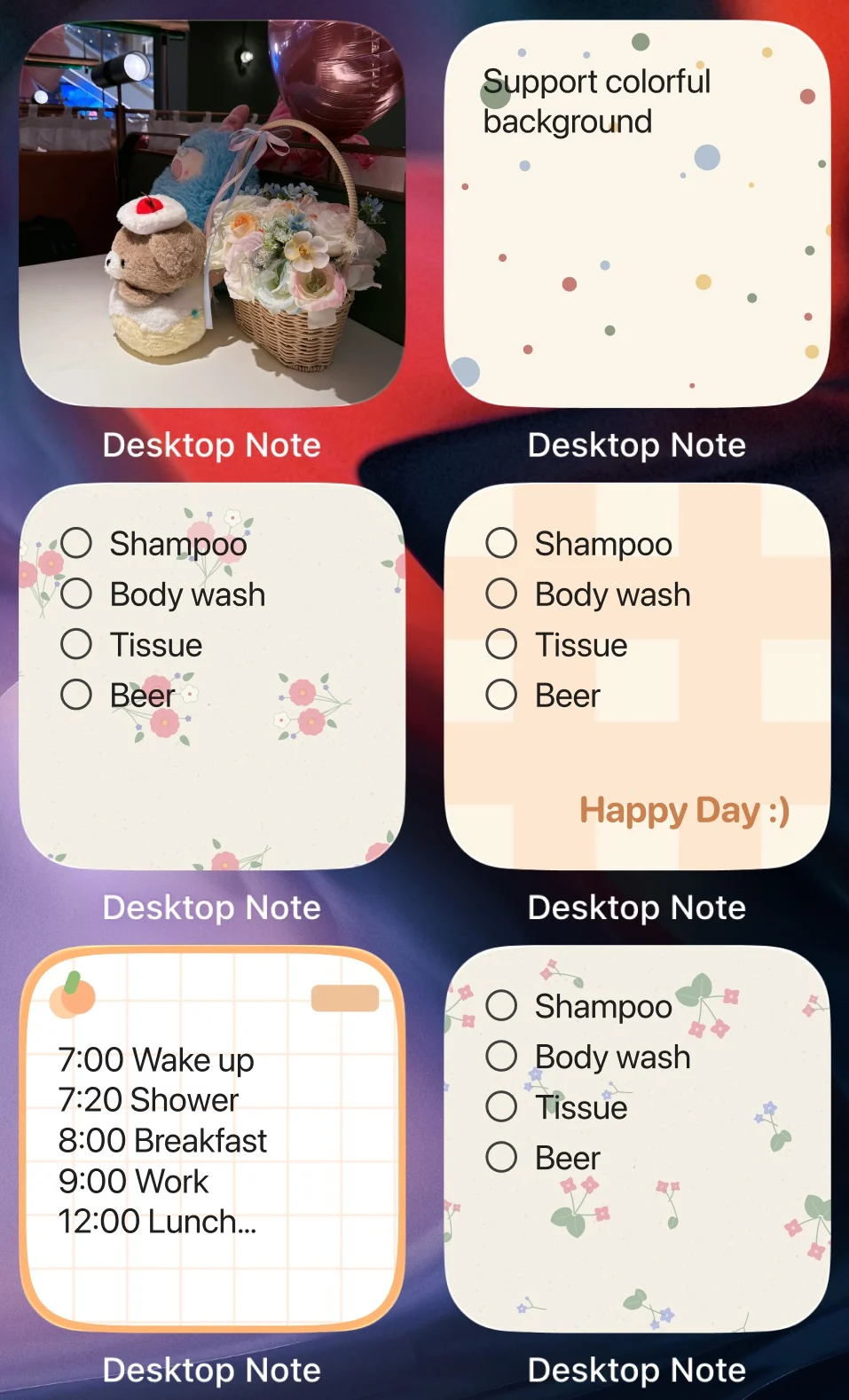
Colorful backgrounds, illustrated backgrounds and text styles let you adjust how your notes look to suit your personal preferences. Alongside the choice of which content to display, these appearance options help you keep the familiar experience of personal, colorful notes when moving to iPhone.
Another advantage: using your notes with a Mac
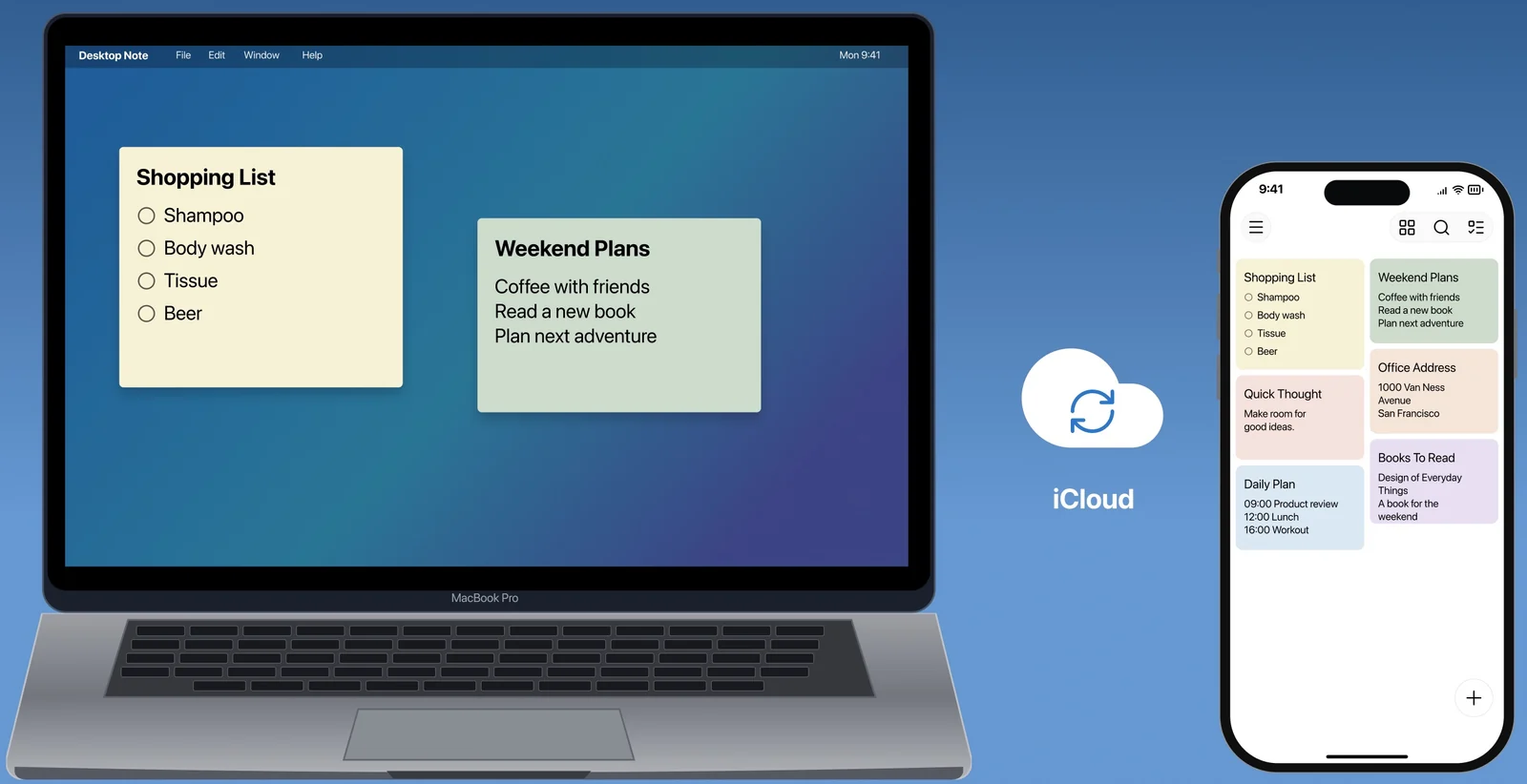
Desktop Note also has a macOS app. Your notes can synchronize through iCloud between your own Apple devices, so content you previously checked only on your phone can also sit on the Mac desktop or remain in front of other windows while you work. For someone moving to an iPhone and Mac combination, this provides a connected way to keep using those notes.
Bringing existing ColorNote notes into Desktop Note
For people who already have notes in ColorNote, Desktop Note provides an import option for local backups. Prepare a ColorNote device backup on Android and transfer the file to your iPhone. Then use Desktop Note’s import entry to choose the file, review the preview and confirm the import.
This provides a migration path for supported text notes and checklists, without having to enter every note again by hand.
Understand Desktop Note’s import limits before moving
Importing does not make a complete copy of ColorNote. The current Desktop Note importer skips locked notes, items in the trash and empty checklists. Reminders and Android widgets do not transfer, and colors are matched approximately. Some backup formats or passwords may also have compatibility issues. Keep the original backup and check the imported results.
These are limitations of Desktop Note’s importer; they should not be presented as shortcomings of ColorNote itself.
After importing, Desktop Note does not maintain two-way synchronization with ColorNote on Android. If you still need to keep editing the same note in both apps, a one-time backup migration will not meet that requirement.
ColorNote: notes, reminders and a calendar on Android
ColorNote’s strengths include its combination of notes, reminders and calendar features on Android. Alongside note-taking and checklists, it offers reminders, a built-in calendar and recurring reminders. If you already keep your schedule and daily reminders in ColorNote, these are important parts of your routine to consider before moving.
ColorNote also supports locking notes with a master password, as well as cloud backups and local device backups. If Android remains your main device and you rely on these features, there are clear reasons to continue using ColorNote.
Choosing after moving to iPhone
For iPhone users, ColorNote’s most direct limitation is the lack of an official iOS app. Its official guidance for moving between operating systems describes sending notes by email. To continue managing that content as notes on an iPhone, you need to choose another app and check that the migration method preserves the data that matters most to you.
If you have already moved to iPhone and want colorful notes, Home Screen widgets and a connection with your Mac, Desktop Note is worth trying. Start with one note to check whether the experience suits you. Then follow the migration guidance for your ColorNote backup, check the content and gradually build your new note library.
Download Desktop Note for iPhone