 Desktop Note
 vs Google Keep: which notes app fits your iPhone?
Compare iPhone Home Screen widgets, illustrated notes and iCloud with Google Keep’s cross-platform access and collaborative editing.
Choosing a notes app on iPhone involves more than typing a thought or making a to-do list. It also means deciding where that information should appear during your day: collected inside an app you open, or visible on your Home Screen whenever you need it? Consider whether you also want the same notes on an Android phone, a Windows computer or a Mac.
Desktop Note and Google Keep both cover everyday note-taking. Desktop Note is a good fit if you want notes, lists and photos on the screens of your Apple devices. Google Keep suits people who organize notes around a Google account and need access across platforms or editing with other people.
What they share: notes, lists and ways to distinguish your content
Both apps support text notes, to-do lists and colored backgrounds. Both can also synchronize content between their supported devices. Keep offers background choices too, so colorful notes are not a feature exclusive to Desktop Note. Either app can hold a shopping list, preparations for a trip or an idea you want to capture before you forget it.
Where Desktop Note helps: notes built around the iPhone Home Screen
Desktop Note lets you place frequently consulted notes in Home Screen widgets, alongside photo widgets. You might put your three priorities for today beside your most-used apps, or give a favorite photo a place on your Home Screen. The content becomes part of what you see when you pick up your phone, rather than something you remember only when opening a note collection.
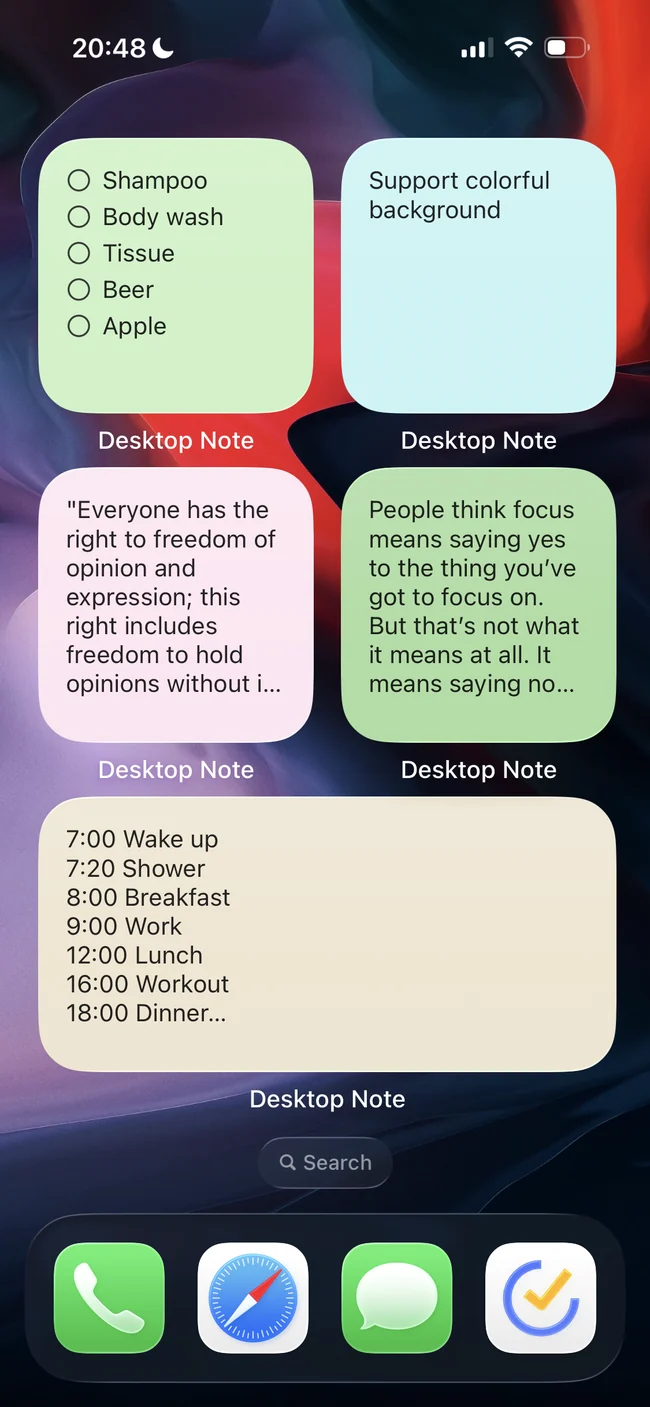
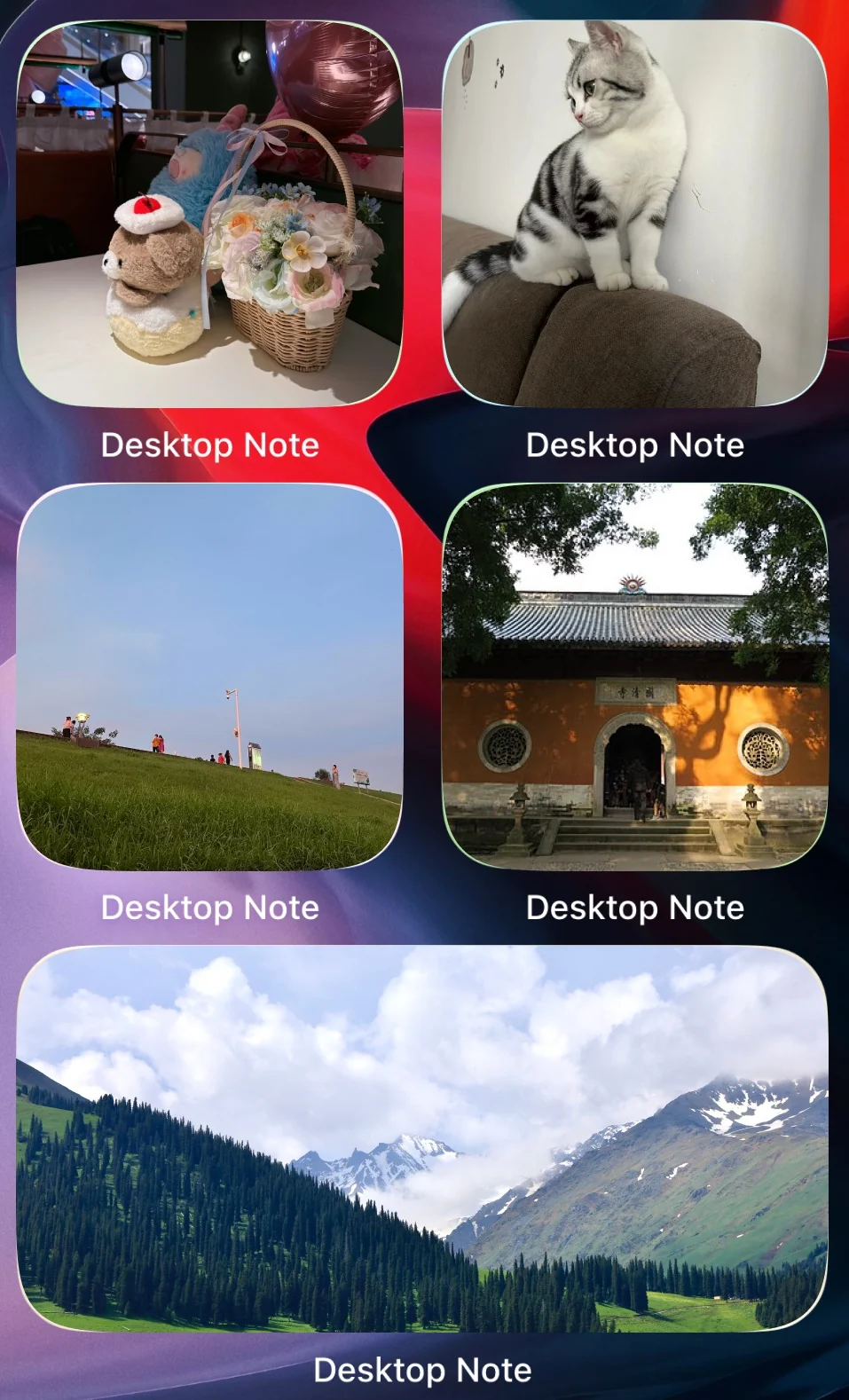
Explore Home Screen note widgets
Colors, illustrated backgrounds and text styles give you further ways to separate different purposes. Choose one background for work tasks and another for personal notes, then use text styling to emphasize what matters. This is a question of your reading habits and how you want your Home Screen to look, rather than a contest over which app has the longest list of colors.
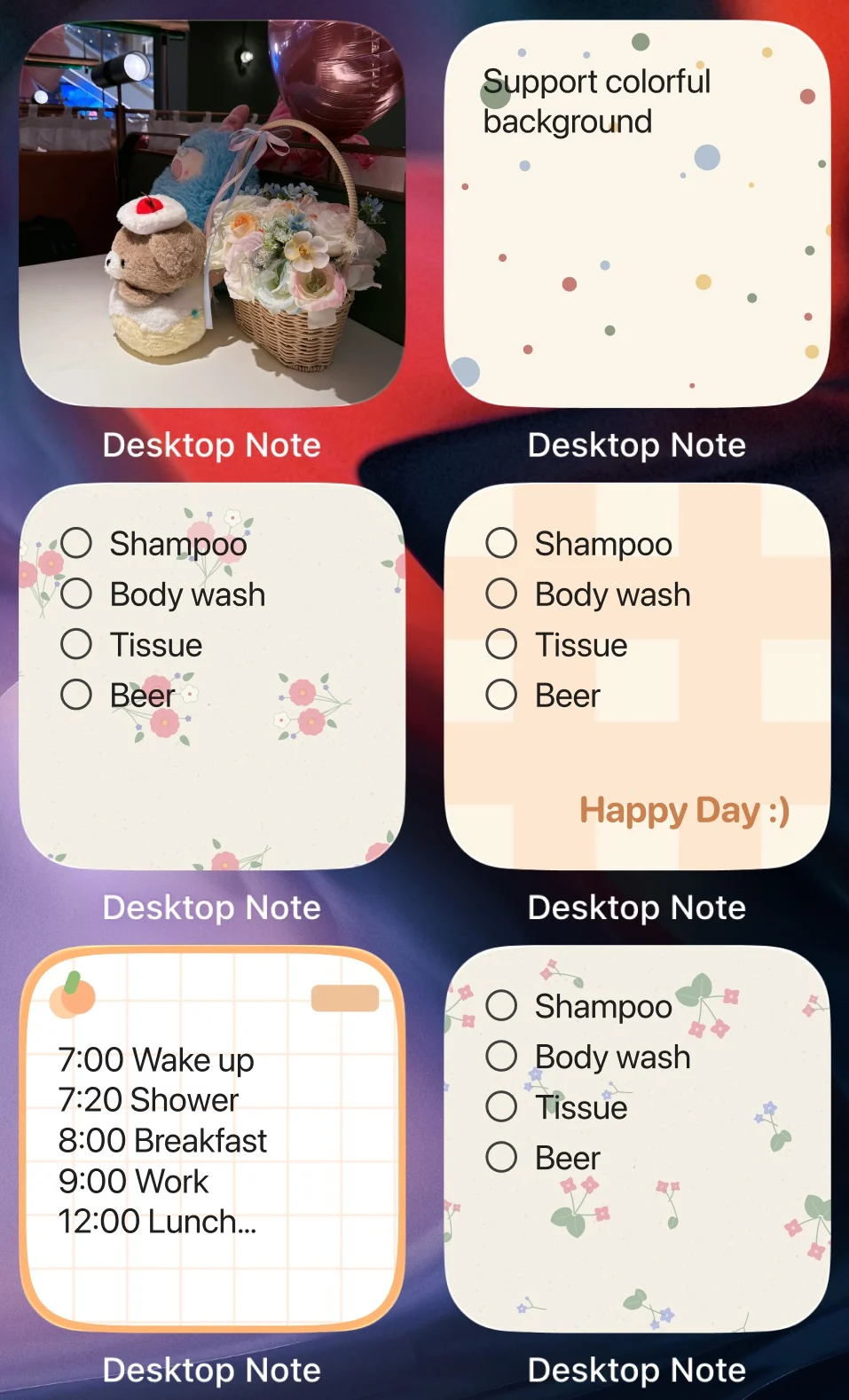
Explore note appearance options
If you also use a Mac, Desktop Note’s iCloud synchronization can be useful. With the same Apple account, you can continue working with note content on iPhone and Mac, then choose phone widgets or Mac desktop notes as the display method for each device. It is the content that syncs: the position of a Mac window and its pinning settings do not turn into a matching layout on your phone.
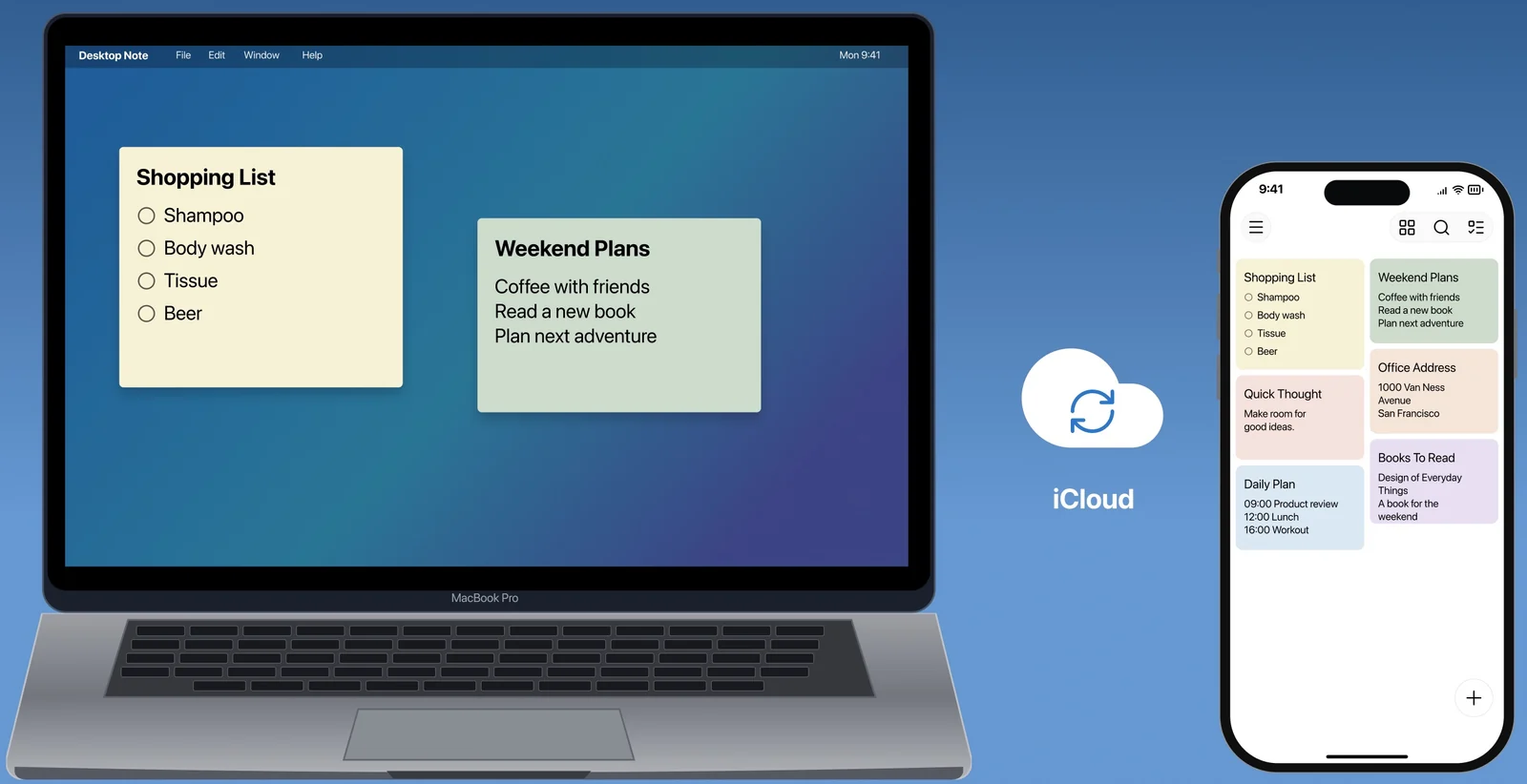
Explore iCloud synchronization · Download Desktop Note
Desktop Note’s limitation: a focus on Apple devices
If you also need to edit the same collection on Android, or sign in from a browser on any computer, Desktop Note’s current client range is less suited to that requirement than Keep. Synchronizing between your own devices is also different from inviting several people to edit the same note together.
Where Google Keep helps: a Google account, cross-platform access and collaboration
For someone already using Google services, Keep continues with the account they have. Notes are accessible on iPhone, Android and the computer’s web browser. This can be more convenient when your phone and computer are not part of the same device ecosystem.
Keep also works well for maintaining something together. You can share a shopping list with family or add information to a note with colleagues. Adding collaborators allows other people to edit the same note. That shared editing capability serves a different purpose from keeping one person’s devices synchronized.
Keep for iPhone also offers voice recording with automatic transcription and extraction of text from images. These are advantages to consider if speaking or taking a photo is a frequent way for you to collect information.
Keep’s trade-off: Google’s account and synchronization system
If your main aim is to connect iPhone and Mac through iCloud, with information on the phone’s Home Screen and the Mac desktop, Desktop Note’s combination of apps fits that workflow more closely. Keep’s cross-platform access and collaboration instead suit mixed devices and notes maintained with other people.
To see whether visible Home Screen notes work for you, start with one everyday checklist in Desktop Note. Add it to your iPhone Home Screen and try that way of displaying information before deciding which approach fits your habits.
Download Desktop Note for iPhone