 Desktop Note
 vs Google Keep: desktop sticky notes or web notes on Mac?
Compare Desktop Note and Google Keep on Mac: native sticky notes, window pinning, transparency, iCloud, browser access, collaboration and offline limits.
When you work on a Mac, some notes need to stay in sight: an outline while you write, key points during a meeting, or the most important tasks for today. Whether a note can appear independently on the desktop and remain in front of other windows directly affects how you use it.
Desktop Note offers a native macOS app focused on desktop sticky notes and window display. Google Keep’s official approach on Mac is primarily web based, making it a better fit for managing, searching and sharing notes through a Google account.
What they share: notes, checklists, colors and sync
Both apps can capture a piece of text, make a to-do list and separate different topics with color. Both also sync content across the devices they support. Keep additionally offers labels and pinned notes to organize its note list. The useful comparison is what happens after you have written something: how will you keep using that information while you work?
Desktop Note’s first advantage: a native Mac app
You can manage notes and adjust sticky-note windows directly in a macOS application, without first opening the Keep website. For people who prefer desktop applications and want notes to become part of their everyday workspace, this is a more direct way to work. The desktop display feature follows that approach.
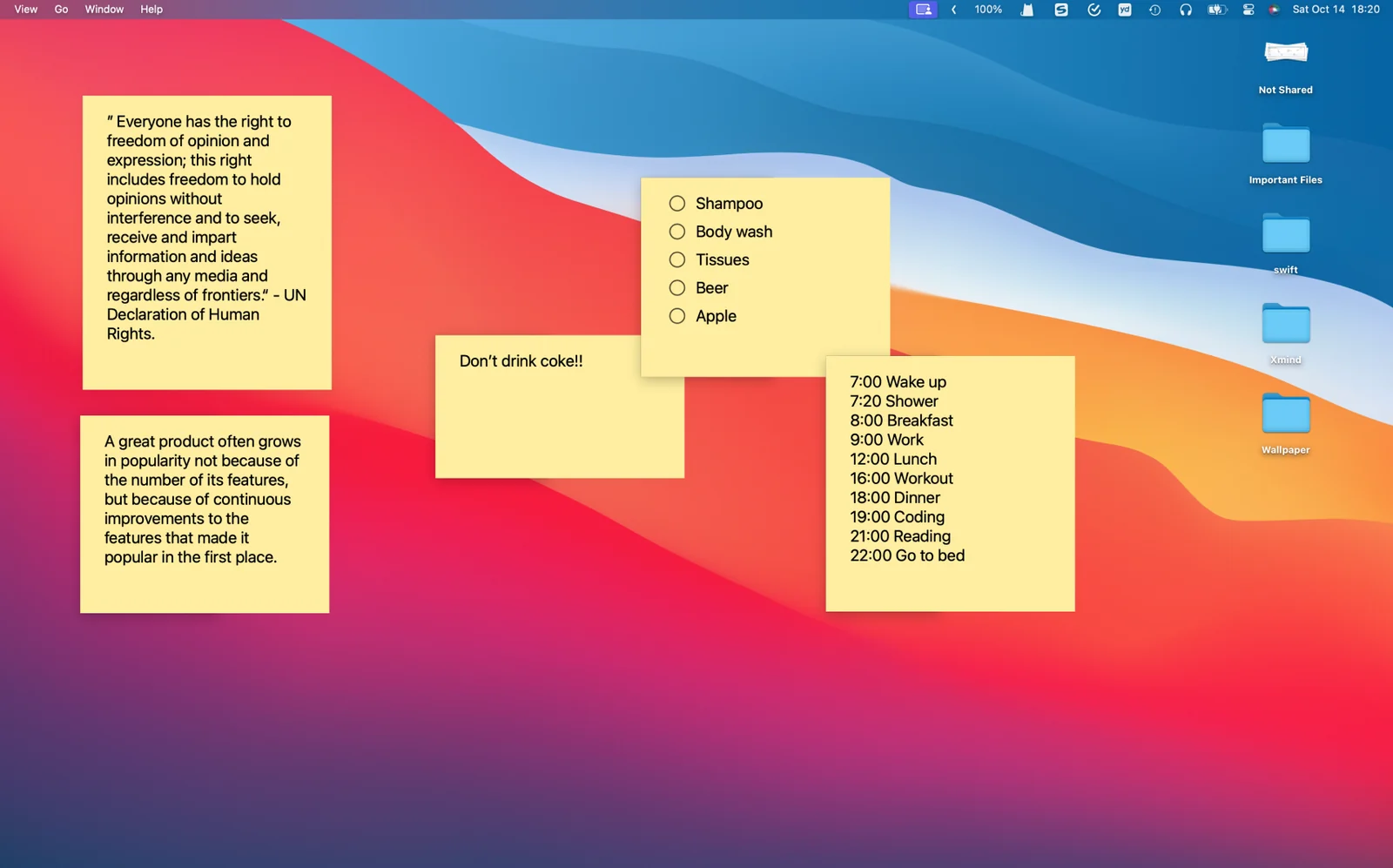
Google also provides a way to open Keep through a shortcut or in its own window. This can reduce the distraction of browser tabs, but it remains a way of using the web application, rather than a native macOS client.
Desktop display, window pinning and transparency
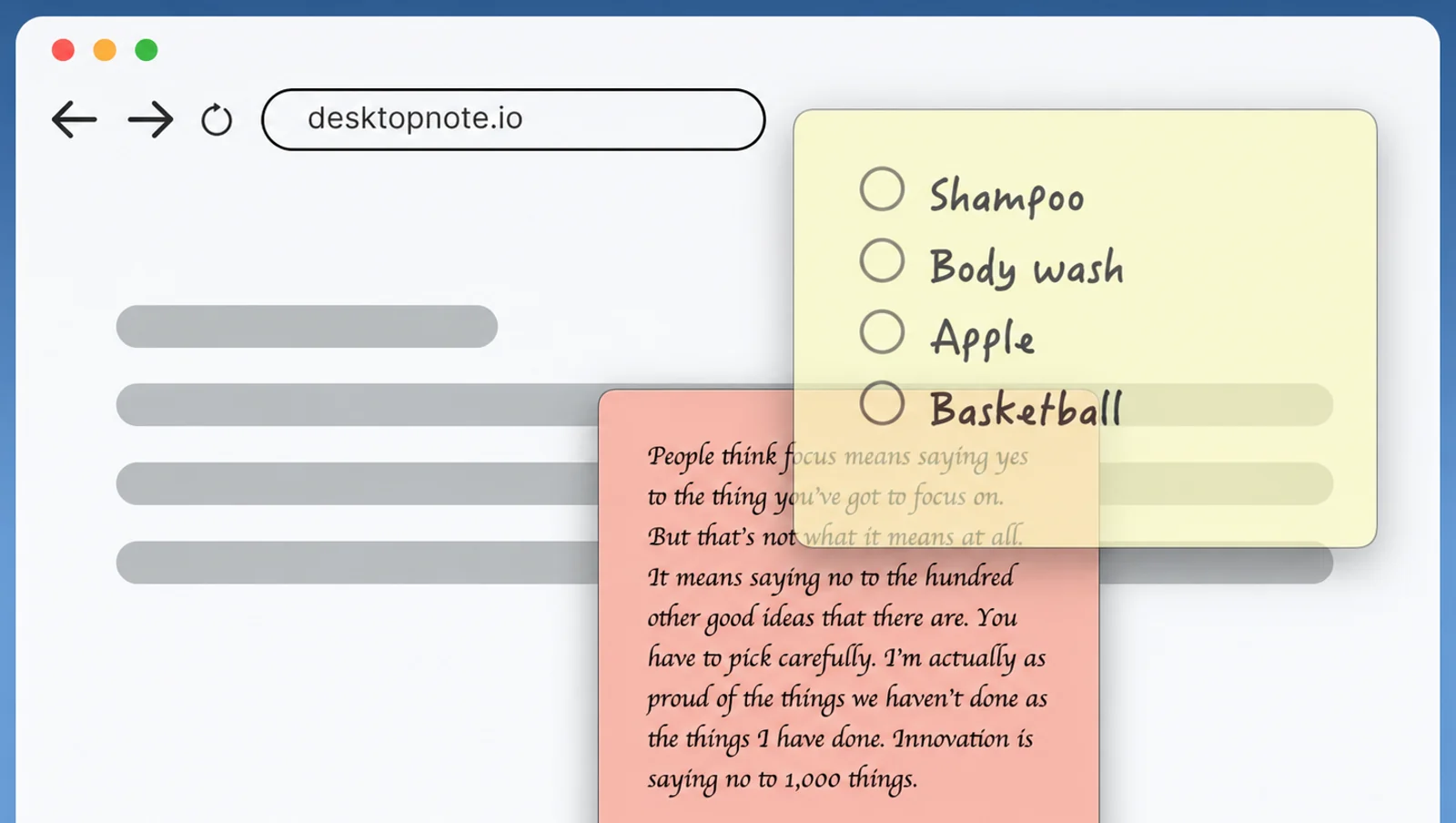
Desktop Note can place sticky notes directly on the Mac desktop, keep a note in front of other application windows and adjust its transparency. You might keep an outline beside a document as you write, or leave reference information visible while working through other material.
It is important to distinguish two meanings of “pin.” Desktop Note’s window pinning controls a note’s position in front of or behind other application windows. Google Keep’s pinning moves an important note to the top of the Keep list. These solve different problems: a pinned Keep note should not be understood as a Mac window that stays in front.
iCloud sync for an Apple device setup
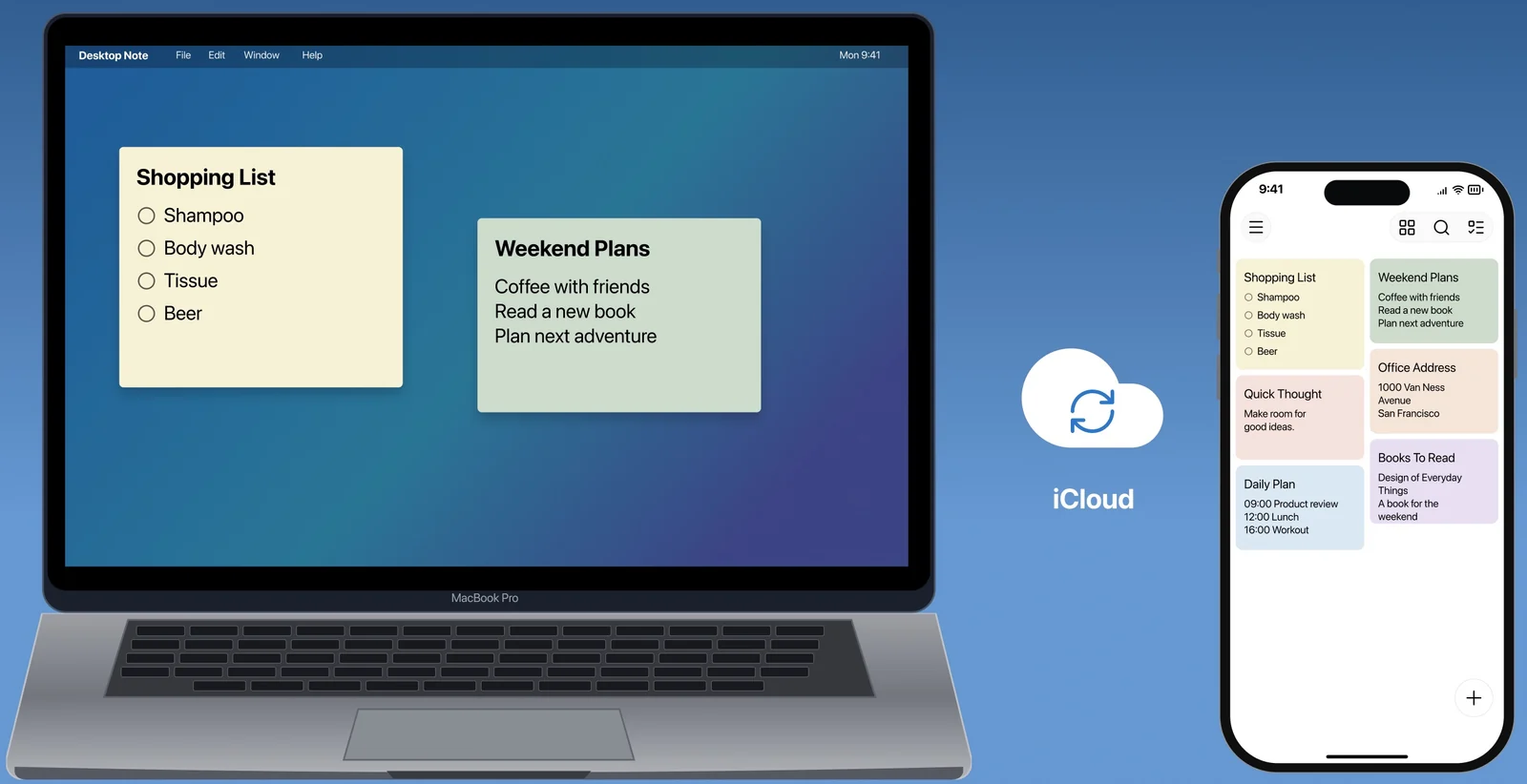
If you already use a Mac, iPhone and iPad, you can sync Desktop Note content between those devices with the same Apple account. Organize work notes on your Mac, then continue viewing them on your iPhone. This iCloud sync fits an existing Apple device routine; it does not mean that Keep lacks cloud synchronization.
Desktop Note’s limits: personal use and Apple devices
If you regularly switch between Windows, Android and Mac, or need to invite someone else to edit notes together, Keep’s cross-platform access and collaboration are a better fit. A native client also does not automatically mean faster performance or lower resource use. Choose according to how you work, rather than assuming that the application format alone determines the result.
Keep’s strengths: a Google account and access across devices
Open Keep in a browser on your Mac, then continue accessing it through a supported browser on another computer. For people who often change computers or mainly use Google services, this reduces dependence on a particular operating system.
Keep also supports collaborative editing and connects with document work in Google Workspace. For example, you can capture ideas in Keep and copy them into Google Docs to develop a full document, or maintain a checklist with someone else. Shared editing is a separate need from keeping your own devices synchronized.
Keep’s Mac limits: a workflow centered on the web
Keep’s list pinning does not directly provide Desktop Note’s independent desktop sticky notes or window-pinning behavior. Google’s desktop help also makes an offline distinction: mobile apps support offline access, while computers do not offer the same offline access.
If you want working outlines, tasks and reference information to remain on your Mac screen, start by trying Desktop Note’s desktop display and pinning features. If browser access, a Google account and collaboration matter more, prioritize Keep.