 Desktop Note
How to import ColorNote notes into Desktop Note on iPhone
Move a ColorNote device backup to iPhone, preview the import and understand supported files, skipped items and password limitations.
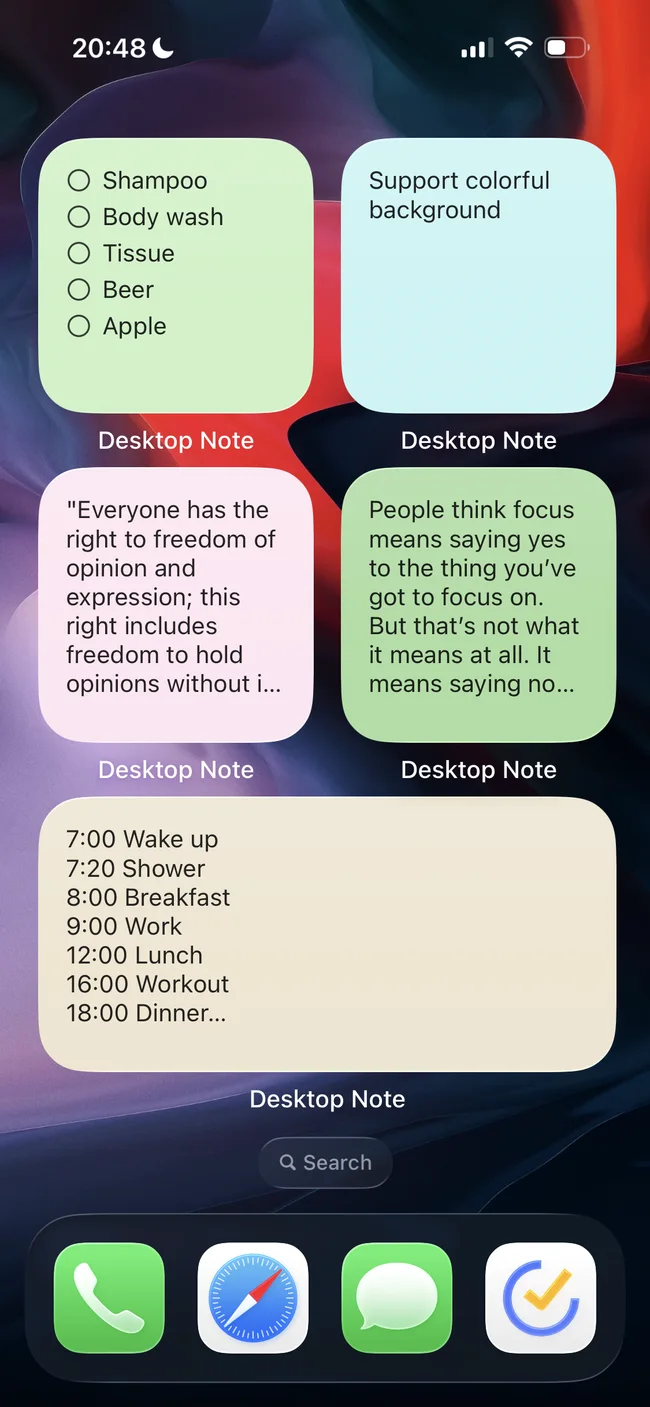
Desktop Note on iPhone can import a ColorNote device backup. This is a file migration into a different app, not a sign-in to the ColorNote cloud account or continuing two-way synchronization with Android. Keep your original notes and backup until you have checked the result.
Create and transfer the backup
- On Android, open ColorNote’s backup screen. Tested newer versions use More → Settings → Backup → Backup Notes; an older layout uses Backup → Device → Backup Notes. Follow the labels visible in your version.
- Create a device backup and retain the password used for that backup. Use Send from the backup list to transfer the original file, then save it in Files on your iPhone.
- In Desktop Note, open Settings → Import from ColorNote and choose the file. Supported tested file extensions are
.backupand historical.doc; the latter is not a Word document. - Enter the backup password, or leave it blank if no backup password was configured, then select Preview import.
- Review the counts and skipped items before selecting Import notes. Open several imported notes, including a checklist and an archived note where applicable.
What transfers, and what does not
The importer handles supported text notes and checklists, including task completion and archive state. Colors map to similar Desktop Note backgrounds. Locked notes, Trash contents and empty checklists are skipped. Reminders and Android widgets do not transfer. Previously imported identifiers are skipped, so reimporting does not overwrite your existing edits.
Compatibility and password checks
Verification dated 13 November 2026 covers sample backups from ColorNote 3.11.16, 4.6.8, 4.8.8 and 4.9.4; it does not certify every backup or future version. Backups protected with non-ASCII passwords have a known compatibility issue. If affected, create another backup in the original app using a new password with only ASCII letters, numbers and basic punctuation, retain the original backup, and retry. Renaming a file does not convert its format.
Backup decoding and the password are processed on the iPhone. Imported notes may subsequently synchronize through your iCloud account. For a new iPhone setup, verify the imported content before arranging widgets or checking it on your Mac.