 Desktop Note
How to sync notes between iPhone and Mac with iCloud
Set up Desktop Note on your Apple devices, verify a small sync test and distinguish note syncing from desktop or widget layout.
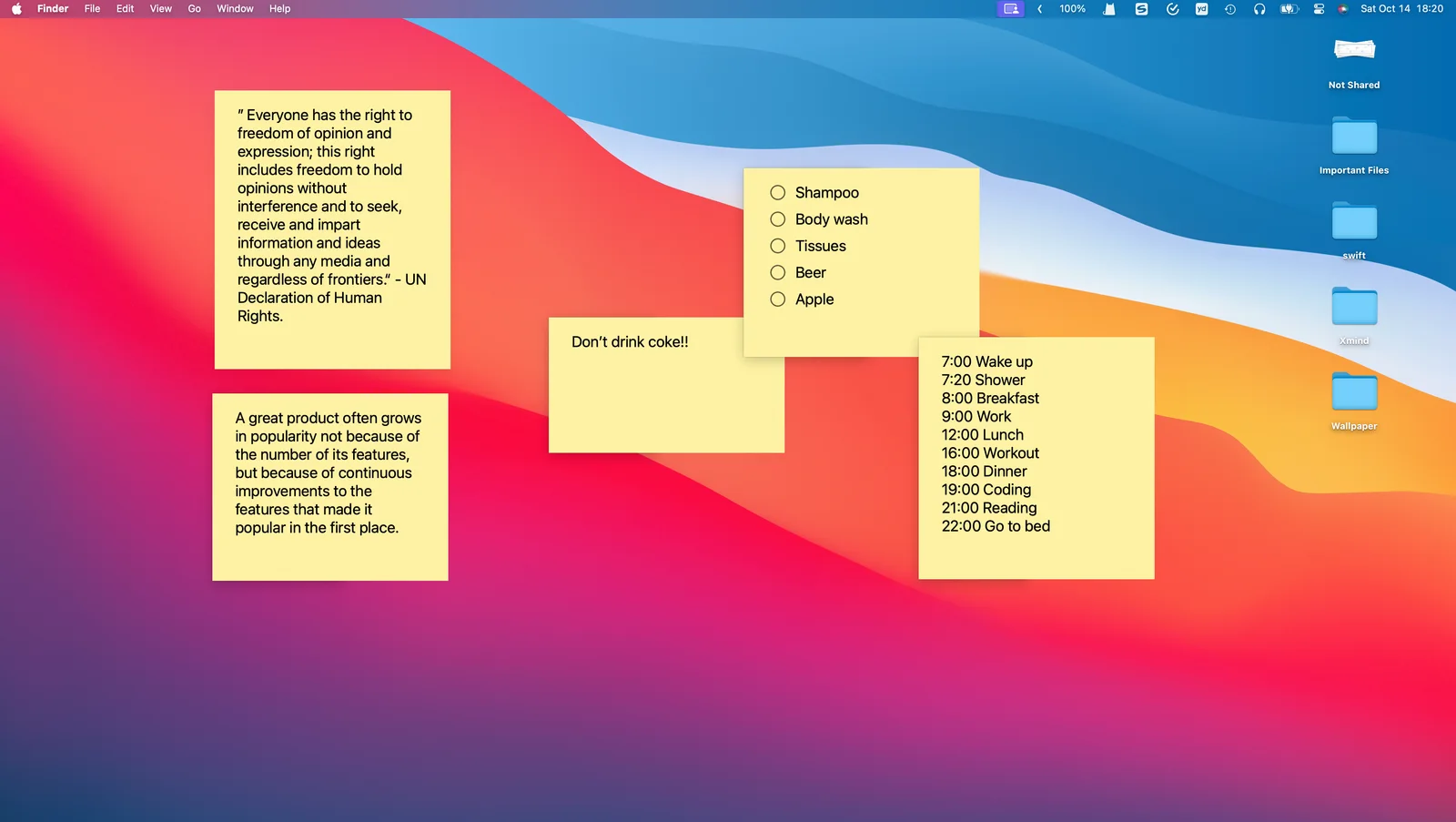
Desktop Note uses iCloud to synchronize notes and photos between its iPhone, iPad and Mac apps. The useful outcome is access to the same content on your devices: write a short plan at your desk and consult it later on your phone. The Mac desktop layout and the iPhone widget are configured separately.
Establish a small sync test
- Install Desktop Note on both devices and sign in to the same Apple Account in the system settings.
- Check that iCloud is available to the app and that the account has enough free iCloud storage. Make sure both devices have a working network connection.
- Create a distinctive test note on one device. Use a title you can recognize immediately rather than changing an important existing note.
- Open Desktop Note on the other device and allow synchronization to complete. On iPhone, the sidebar’s Refresh action can request an update; on Mac, use the sync control at the lower-left of the main window.
- After the note appears, make a small edit and verify the content on the first device. Only then rely on the setup for a larger collection.
Diagnose the right layer
If a note is absent from the app, start with the Apple Account, connectivity and available storage. If it appears in the app but not in a widget, check the widget’s selected note and allow it to refresh. If it appears on the Mac but is not on the desktop, inspect desktop visibility settings. These are different problems and need different fixes.
Use sync with realistic expectations
Synchronization is not a promised real-time connection, a shared team workspace or an Android synchronization service. Avoid deleting important originals while troubleshooting. Keep an independent export when preparing a substantial migration, and review a few representative text notes and checklists on each device afterwards.
A useful routine is to draft your daily checklist on Mac, review it on iPhone, and keep the Home Screen widget focused on that one list. This keeps content portable without assuming that every platform presents it identically.