 Desktop Note
How to keep sticky notes visible on your Mac desktop
Create a desktop note, pin it above windows, adjust its appearance and use Spaces in Desktop Note for Mac.
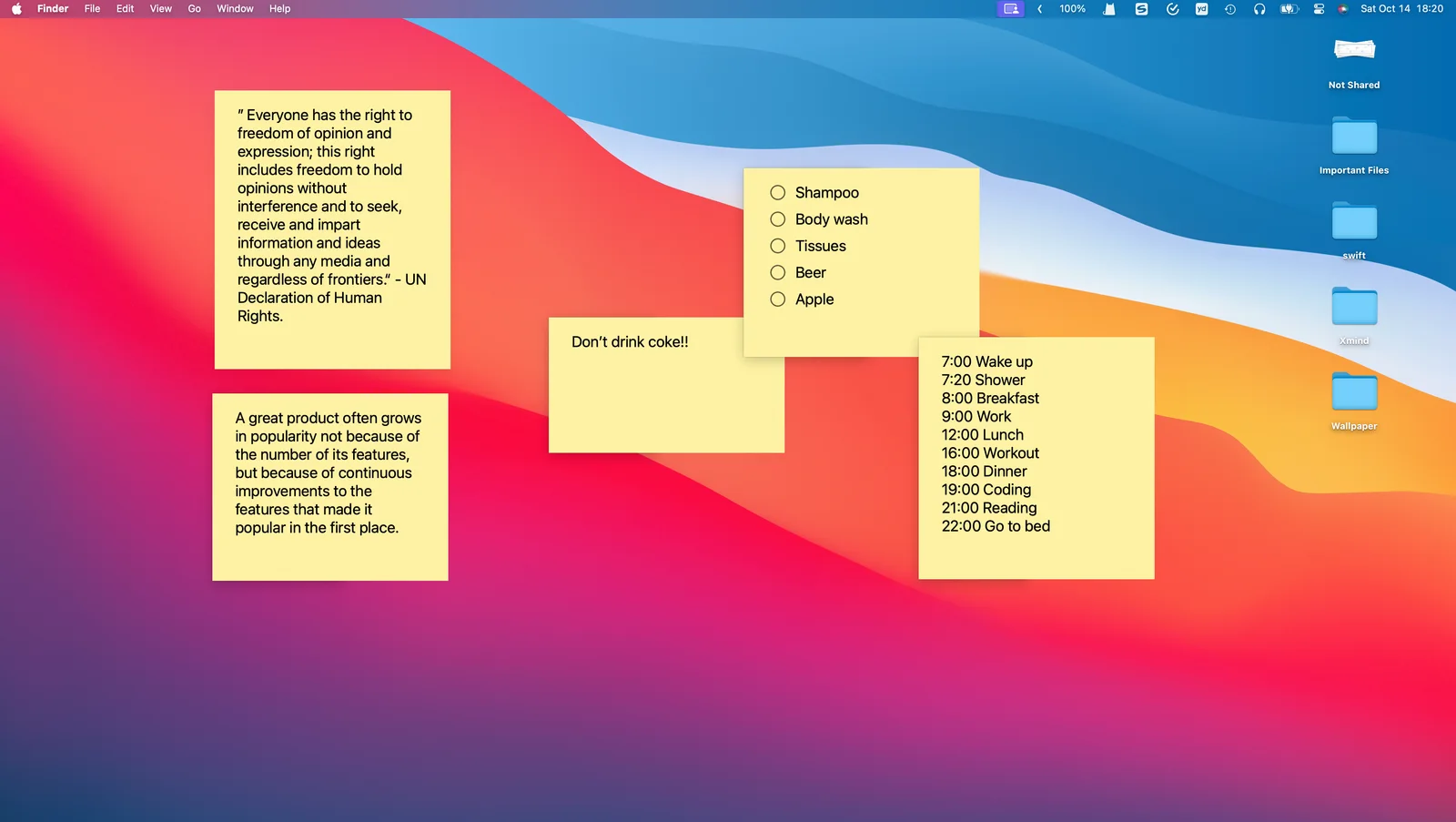
Desktop Note puts notes and checklists on your Mac desktop. Use a desktop note for information you need beside another application: meeting questions next to a video call, a short checklist next to a document, or reference text beside your browser.
Set up your first desktop note
- Open Desktop Note and create a note with New Note. Give it a recognizable title and a short body, or create a checklist when you need separate tasks.
- Check whether the note is visible on the desktop. When selective desktop display is enabled, use its Show on Desktop control. If your settings already display all notes, that individual control may not appear.
- Use the pin control to keep the item above other windows. Pinning and desktop visibility solve different problems: an unpinned note may be behind the application you are using.
- Adjust the color, scale and desktop opacity for legibility. Keep enough contrast against your wallpaper; a transparent note is less useful if its text becomes difficult to read.
- In preferences, enable Show in all Spaces if you want notes available while switching workspaces. Check the result in the Spaces you actually use.
A practical setup for focused work
Start with one note containing today’s three priorities. Keep a separate checklist for a project with several steps. Archive reference material you no longer need in view so the desktop stays useful. Photos can also be displayed, but reserve the most prominent area for the information you consult frequently.
What to expect
A pinned note is an application window, not a macOS notification or a replacement for scheduled reminders. Desktop appearance and window placement are specific to your Mac; do not expect an iPhone widget to reproduce that layout. For the same note on an iPhone, use iCloud sync and configure a Home Screen widget separately. Check the current App Store listing for device requirements and purchase options before downloading.